


Release 4.3.0 - Scheduling and Glance
Scheduling window
When you need to manually set a date and time for the task, you can schedule a task using the new scheduling window. You can open it from the edit window or by clicking on the Schedule or Reschedule options in the task`s context menu.
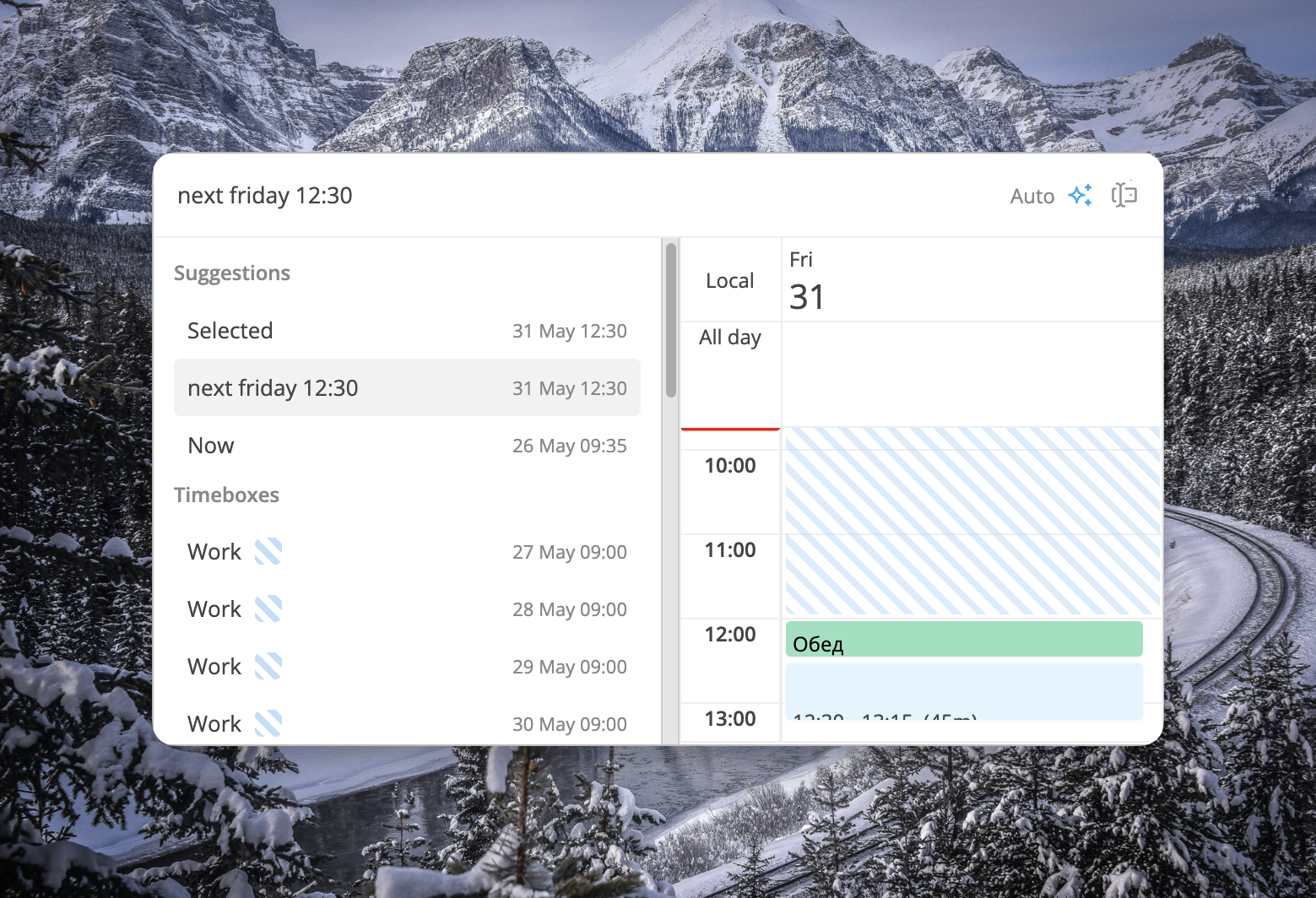
The scheduling window allows you to enter a new date and time using simple words or select it manually from dropdowns. It also suggests you some slots. If you`re scheduling a task with a project, and you have timeboxes with projects assigned to them, you can also select a free time slot from the list.
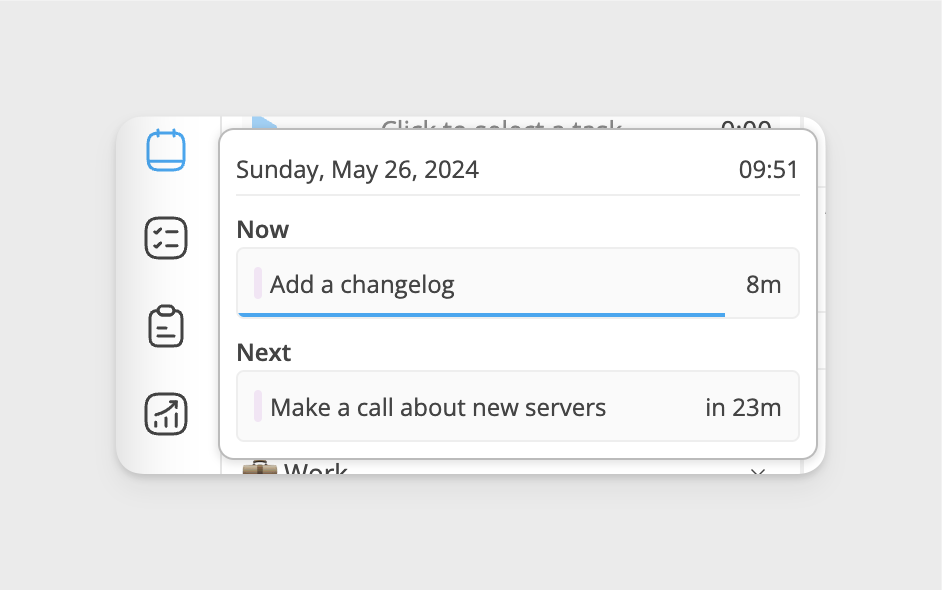
Glance tooltip
We added a tooltip on side menu links which is going to show you actual information - current and next tasks, recent tasks or recent notes.
Improvements
- Returned calendar mode switcher for easier access to creation of timeboxes
- Selected text becomes a link when you paste link
- Improved context menu on subtasks
- Added link validation to the editor
- Link button is now highlighted if cursor is on a link
Fixes
- Command placeholder used to overlay existing text
- It used to create an extra subtask if you add one and then delete it while creating a task
- It was impossible to close command menu by clicking outside of it
- It was impossible to stop the time tracker from the task info window
 Release 4.4.0 - Russian language support